

Join the Galarama closed test
Six short steps. You need an Android phone or tablet, or an Android TV or Google TV device, and a Google account. For a TV, you also need a phone or computer for the first three steps. Galarama is in English for now.
-
Join the tester group
On a phone or computer, sign in to the Google account you use on your phone or TV. Open the Galarama Testers group and select Join group. Anyone can join, and nobody has to approve you.
Open the tester group -
Become a tester
With the same account, open the test page on Google Play and tap Become a tester. When the page says You are a tester, you are in.
Open the test page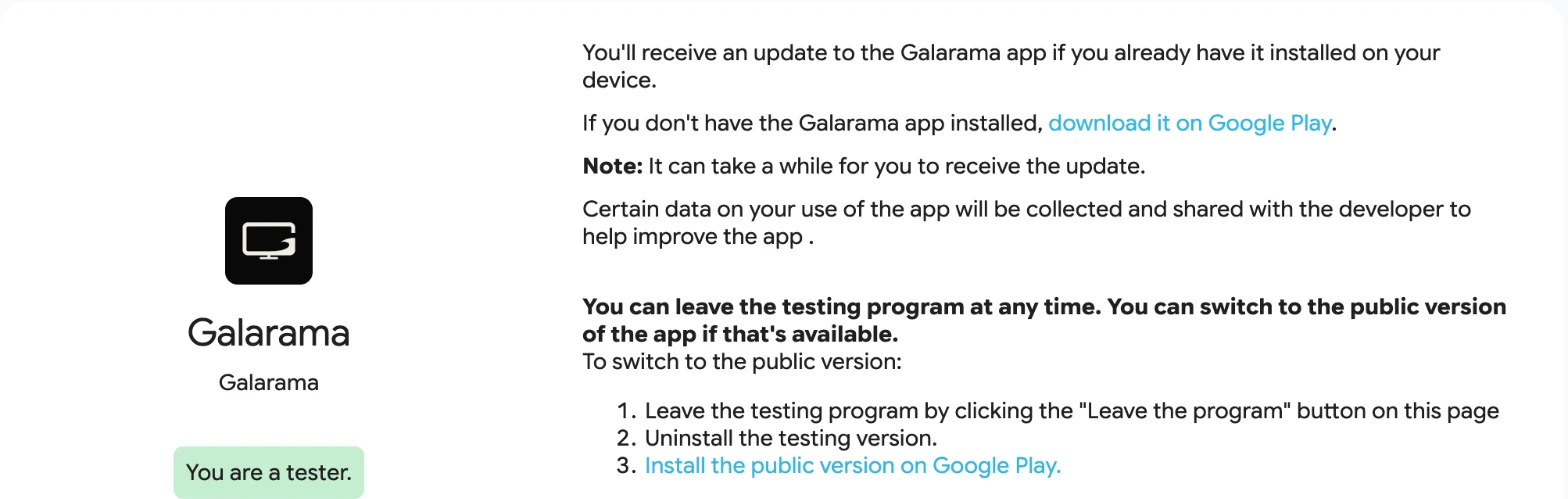
-
Install it
On an Android phone or tablet: open Galarama on Google Play on that device and tap Install. It appears with your other apps.
On a TV: while Galarama is in testing, it does not show up when you search the Play Store on your TV. Install it from the phone or computer instead:
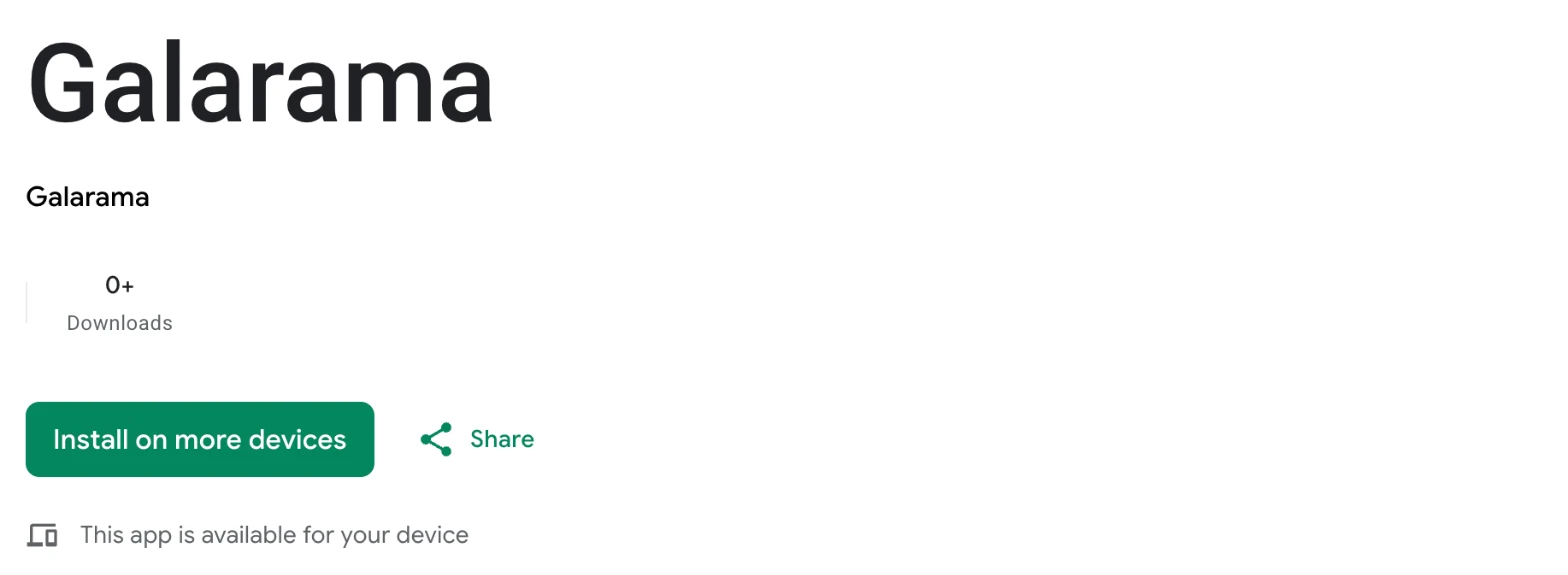
Open Galarama on Google Play and select Install on more devices.
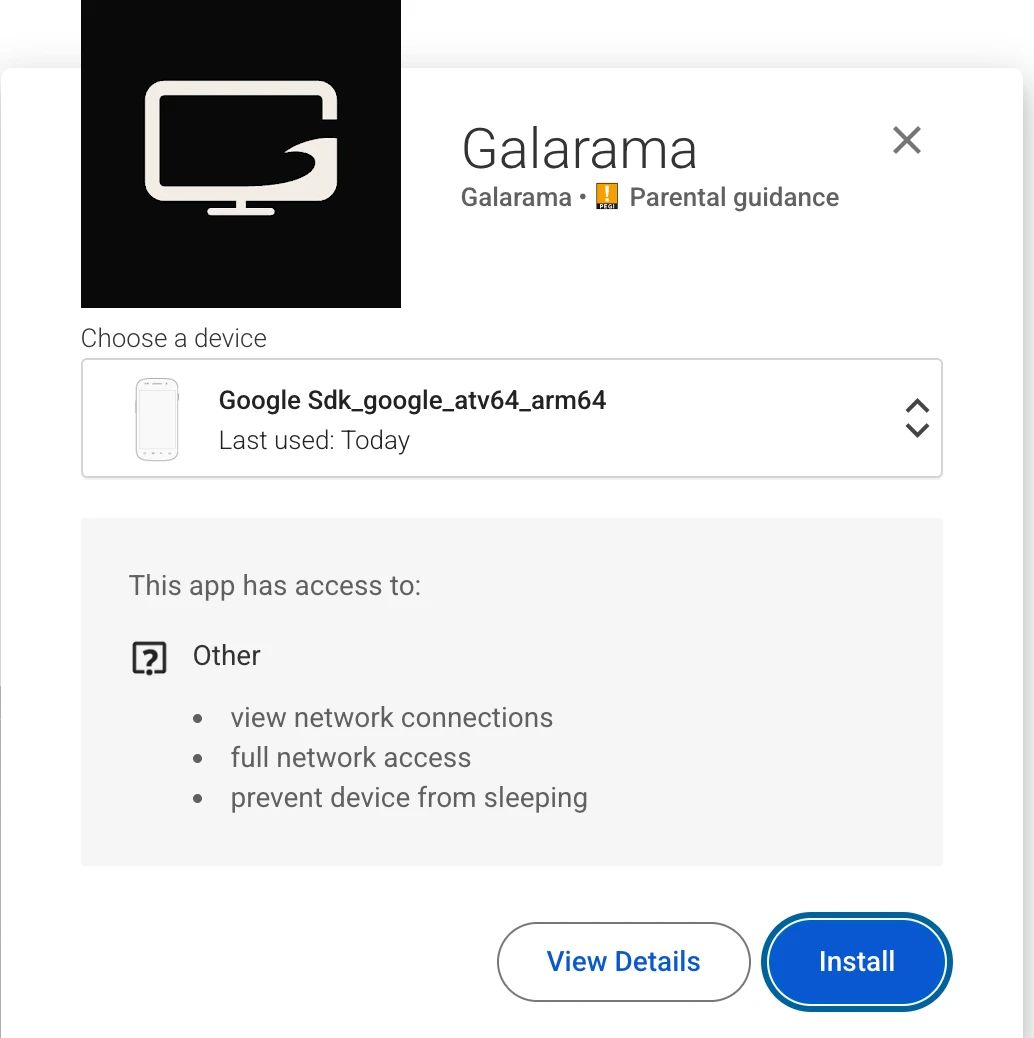
Under Choose a device, pick your TV, then select Install. Google may ask you to confirm it is you (your password or passkey).
After that, Play takes you back to Galarama’s page. Turn on the TV: Galarama arrives within a minute or two and appears under Apps on the TV’s home screen.
Your TV is not in the list? Make sure it is signed in to the same Google account, and has opened the Play Store at least once. If the list says Your device already has this item installed, Galarama is already on the TV: look under Apps.
-
Add your own source
On first launch, read the notice and select Agree and continue. Give your playlist a name, then connect a source you are allowed to use: scan the code on the TV with your phone and send the details from there (how pairing works), or select Enter manually and type it with the remote.
On a phone or tablet, read the notice and agree, then choose M3U URL or Xtream Codes, type the details your provider gave you and tap Connect.
Galarama includes no content and no playlists, and the organiser does not provide any.
-
Keep crash reports on
Crash reports are on by default, so there is nothing to set up. Please leave Send crash reports on: it is how we see a crash on your device. You can check it, or turn it off, under Settings (the button next to the Galarama logo at the top of the screen), then About. On a phone or tablet, it is under Settings.
A report holds the device model, the app version and the error trace. It never holds your sources, addresses or what you watch.
-
Stay in for 14 days
Stay opted in for at least 14 days and use Galarama now and then. Send feedback privately through the Play Store (on Galarama’s page, as a tester), or write to help@galarama.app.
You can leave the test at any time from the same test page. Galarama is playback software: it does not supply, host, index, resell or recommend media of any kind.